- Select your two columns and use Insert › Chart; switch the chart type to Pie chart if needed.
- Customize › Pie chart › Slice label › Percentage puts percentages on the slices.
- Customize › Pie slice › Distance from center pulls a slice out to highlight it.
- Increase Donut hole in the Pie chart section to turn the pie into a donut.
- Download from the chart's three-dot menu as PNG, PDF or SVG.
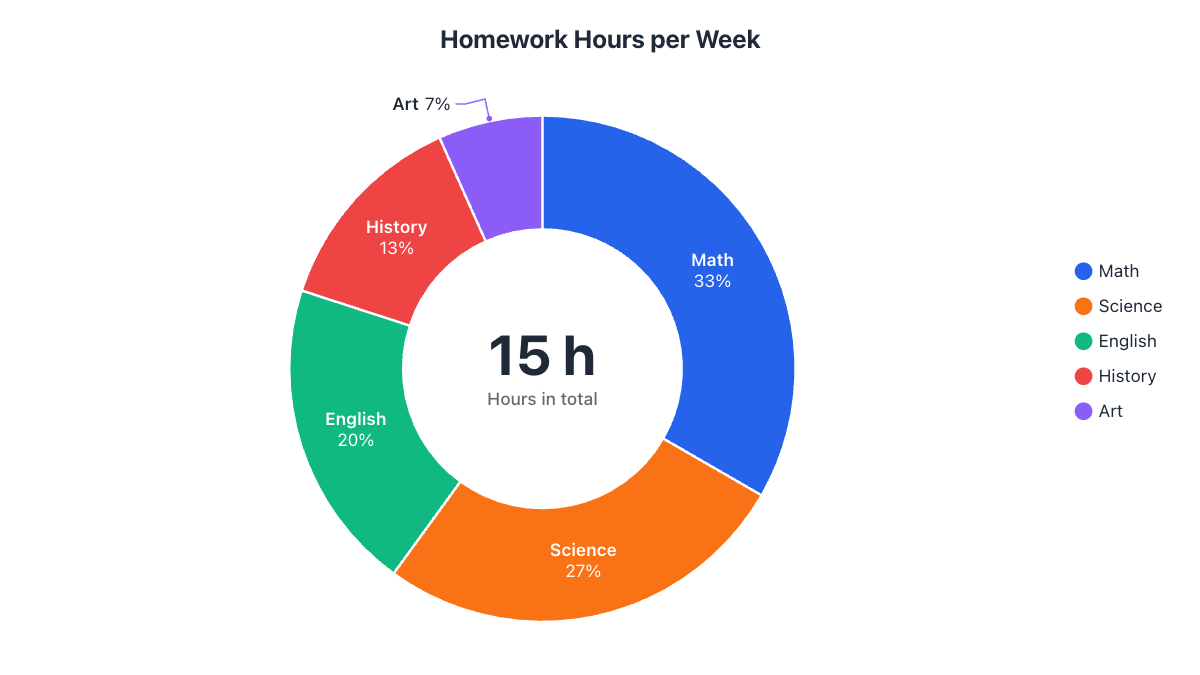
Google Sheets can turn a list of numbers into a pie chart in seconds, and it’s free and works in any browser. The trick is knowing where the useful settings hide in the chart editor. In this guide we’ll chart a student’s weekly homework hours, then add percentage labels, change the colors, turn it into a donut and download it.
Step 1: Enter your data
Type the category names in column A and the numbers in column B, with a header row on top:
| Subject | Hours |
|---|---|
| Math | 5 |
| Science | 4 |
| English | 3 |
| History | 2 |
| Art | 1 |
Leave out any totals row, and make sure every value is a positive number. If your numbers came from another file and are aligned to the left of the cell, Sheets may be treating them as text; use Format → Number to fix them.
Step 2: Insert the chart
- Select the cells with your data, including the header row (A1:B6 in our example).
- Click Insert → Chart. Sheets inserts a chart and opens the Chart editor panel on the right.
- Sheets guesses a chart type. If it isn’t a pie, open the Setup tab, click the Chart type dropdown and choose Pie chart. You’ll also find Doughnut chart and 3D pie chart in the same list.
Menu path: InsertChart, then SetupChart typePie chart
In the Setup tab, check that Label shows your subject column and Value shows the hours column. If they are the wrong way round, change them there.
Step 3: Show percentages on the slices
- In the Chart editor, open the Customize tab.
- Expand the Pie chart section.
- Under Slice label, choose Percentage. Other options are Label, Value, and Value and percentage.
Menu path: CustomizePie chartSlice labelPercentage
Math gets 5 of 15 hours, so its slice shows 33.3%. Sheets calculates this as the value divided by the total; see how pie chart percentages work if you want to check the numbers yourself.
Step 4: Customize colors, title and legend
- Title: Customize → Chart & axis titles. Type a clear title such as “Homework Hours per Week”.
- Slice colors: Customize → Pie slice. Pick a slice from the dropdown and choose its color.
- Pull out a slice: in the same Pie slice section, set Distance from center for the slice you want to highlight.
- Legend: Customize → Legend lets you move it or set it to None if the slices are already labelled.
Step 5: Turn it into a donut chart (optional)
Under Customize → Pie chart, increase the Donut hole size (for example 50%). The chart becomes a donut. Google Sheets doesn’t add a total in the middle, but you can mention it in the title or subtitle. Not sure which looks better? Read pie chart vs. donut chart.
Menu path: CustomizePie chartDonut hole
Step 6: Download or share the chart
Click the chart, then the three-dot menu in its top-right corner → Download, and pick PNG image, PDF or SVG. You can also choose Publish chart to get a link or embed code, or copy the chart and paste it into Google Docs or Slides, where it stays linked to the sheet.
Menu path: ⋮ (chart menu)DownloadPNG image / PDF / SVG
Troubleshooting
- The chart shows one slice per row number: Sheets used the wrong column as labels. Set the Label field in the Setup tab.
- Labels are missing on small slices: Sheets hides labels that don’t fit. Show the values in the legend instead, or group tiny categories into “Other”.
- The chart includes a total: remove the totals row from the data range in Setup.
A quicker option for a polished image
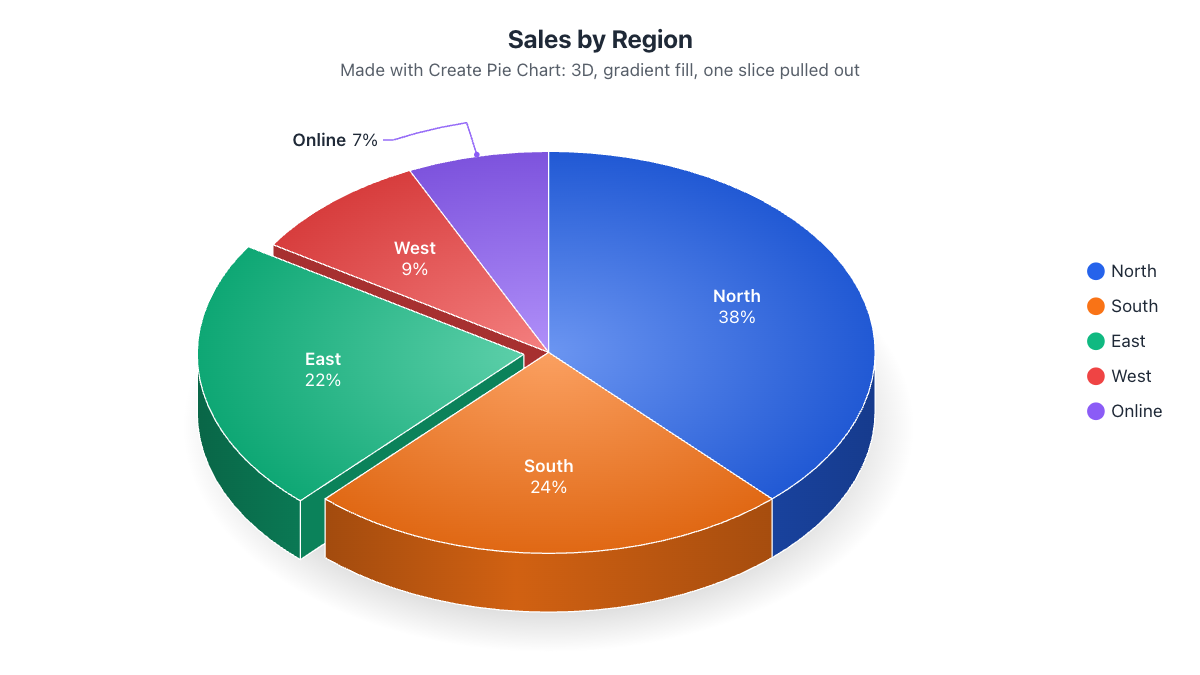
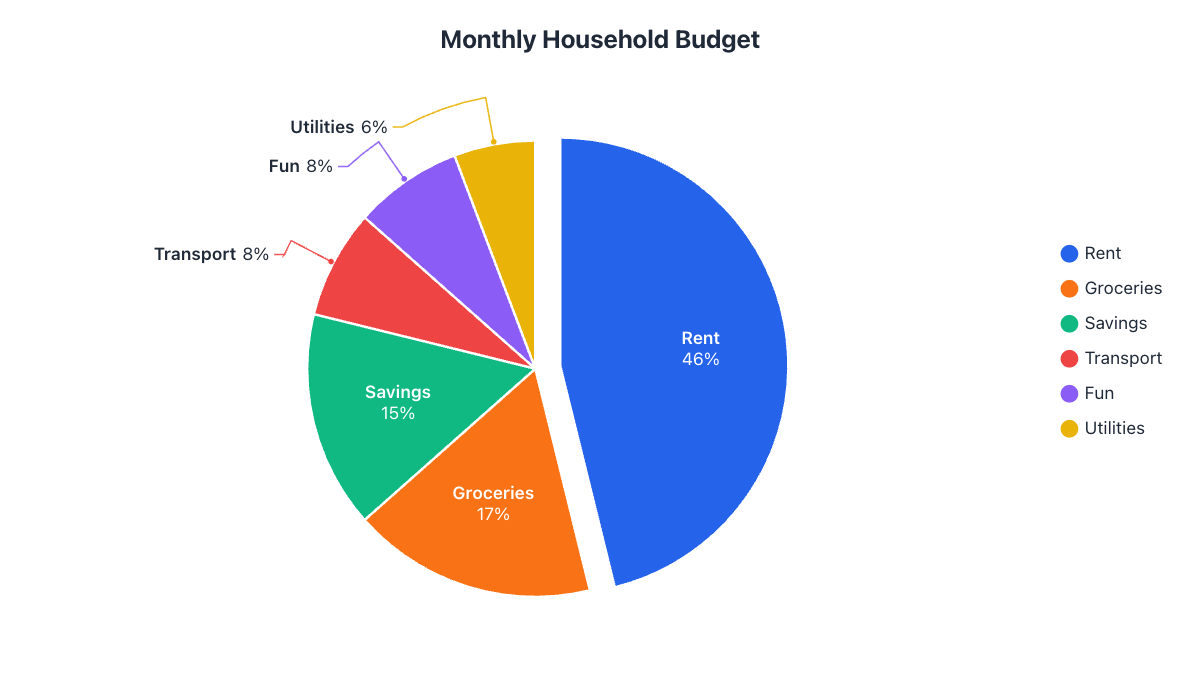
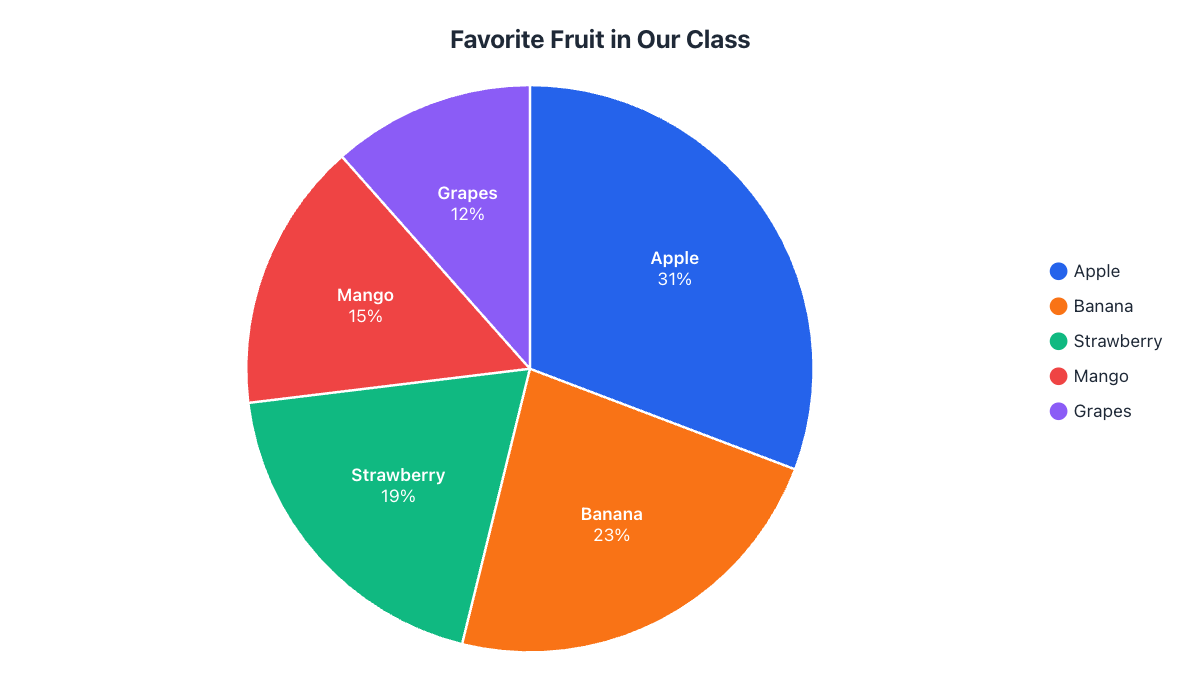
Google Sheets is great when the chart should update with the spreadsheet. If you need a presentation-ready image, copy your two columns from Sheets and paste them into the donut chart maker or pie chart maker. You get the total in the donut’s center, labels that move outside small slices automatically, themes, gradients and 4K or vector SVG downloads, with no sign-up and no watermark.
Frequently asked questions
Can Google Sheets make a 3D pie chart?
Yes. In the Chart editor's Setup tab, choose 3D pie chart from the Chart type list.
How do I show percentages on a Google Sheets pie chart?
Open Customize › Pie chart and set Slice label to Percentage, or to Value and percentage.
Why are some labels missing on my pie chart?
Sheets hides labels that don't fit inside small slices. Show values in the legend, group small categories into 'Other', or use a tool that moves labels outside automatically.
How do I download a chart from Google Sheets?
Click the chart, open the three-dot menu in its top-right corner, choose Download and pick PNG image, PDF or SVG.
Does a Google Sheets chart update automatically?
Yes. The chart is linked to its data range, so editing the numbers redraws it, including in Google Docs and Slides where it's linked.
Make your own chart in seconds
Free, no sign-up, no watermark. Download PNG, SVG or PDF.
Open the Donut Chart Maker