How to make a 3D pie chart
- Type a name and a value for each slice in the table, or paste them from Excel or Google Sheets.
- In the Design tab, set the viewing angle (lower means more tilted) and the thickness of the pie.
- Or simply drag the chart with your mouse: left and right spins it, up and down tilts it.
- Click the expand icon next to a slice to pull it out and draw attention to it.
- Pick a theme, palette, gradient or pattern fill, and choose what the labels show.
- Download your 3D pie chart as PNG, JPG, SVG or PDF, or copy it straight into your slides.
What is a 3D pie chart?
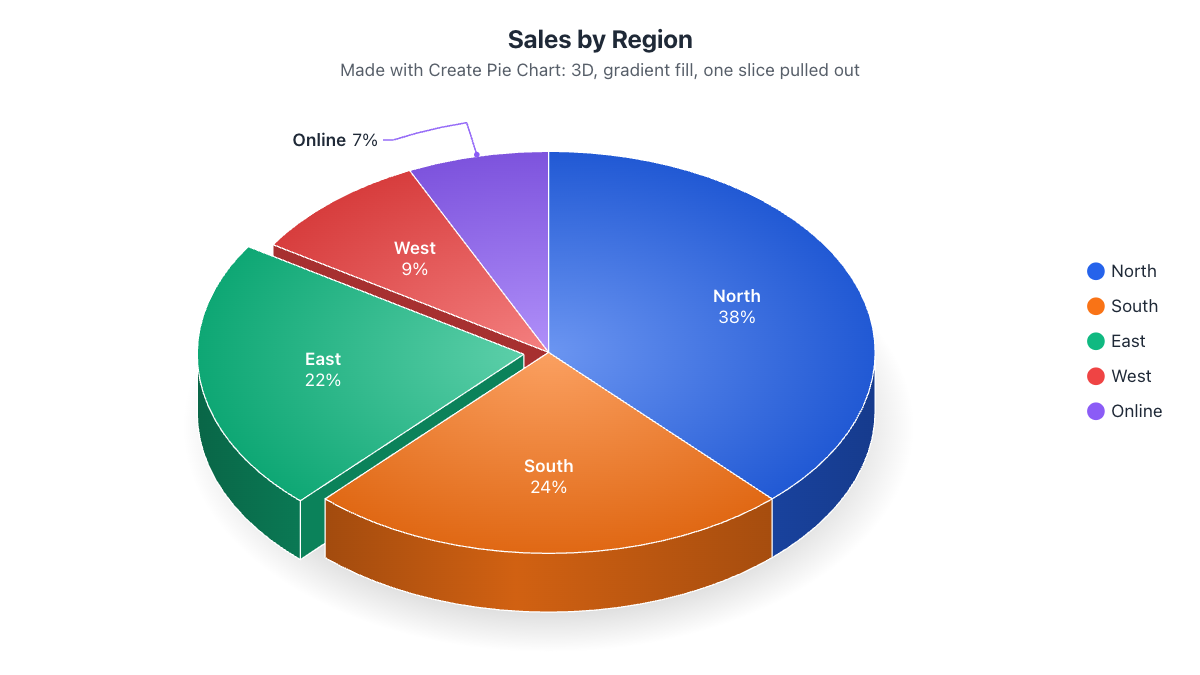
A 3D pie chart is a pie chart drawn as a solid disc seen from an angle, so it has visible sides and depth. Each slice still shows one category’s share of the total, and all slices add up to 100%. The 3D look makes the chart stand out on posters, presentations, infographics and school projects.
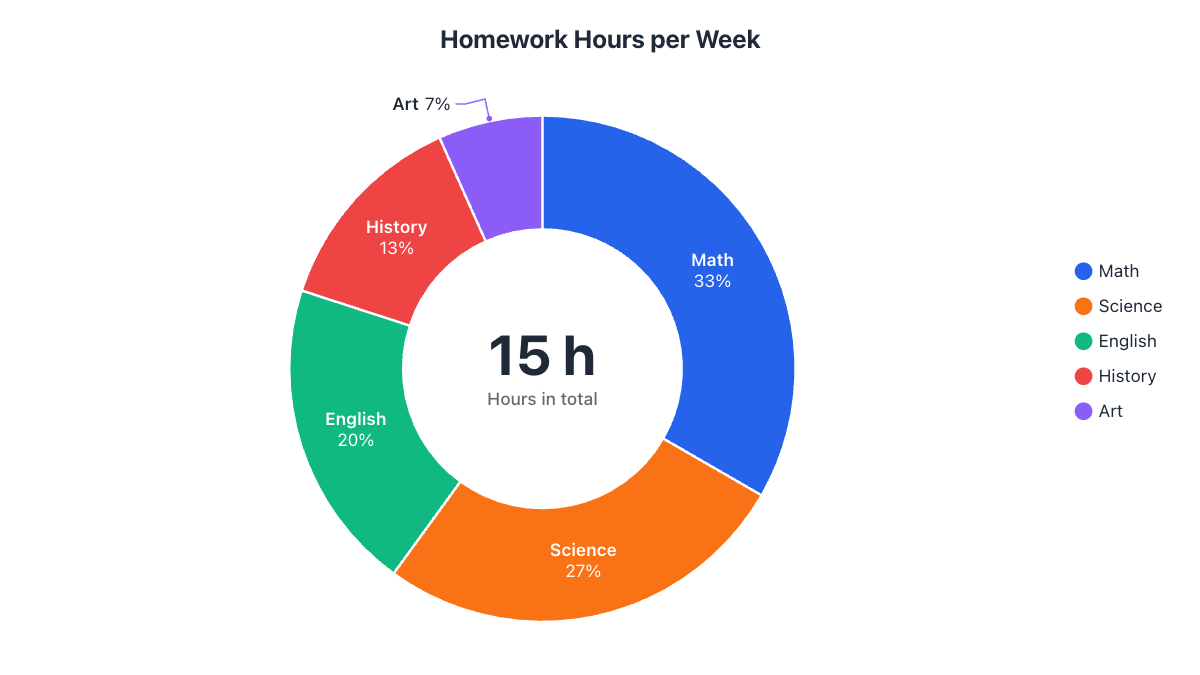
You can also make a 3D donut chart with the total in the middle, a 3D half pie, or a 3D nested pie with several rings. Choose the chart type at the top of the Data tab and keep the 3D effect switched on.
What makes this 3D pie chart maker different
- Real 3D shapes: shaded side walls, visible cut faces on pulled-out slices and a soft shadow, not just a flat chart with a drop shadow.
- Adjustable angle and thickness: from a gentle tilt to a dramatic, thick 3D disc.
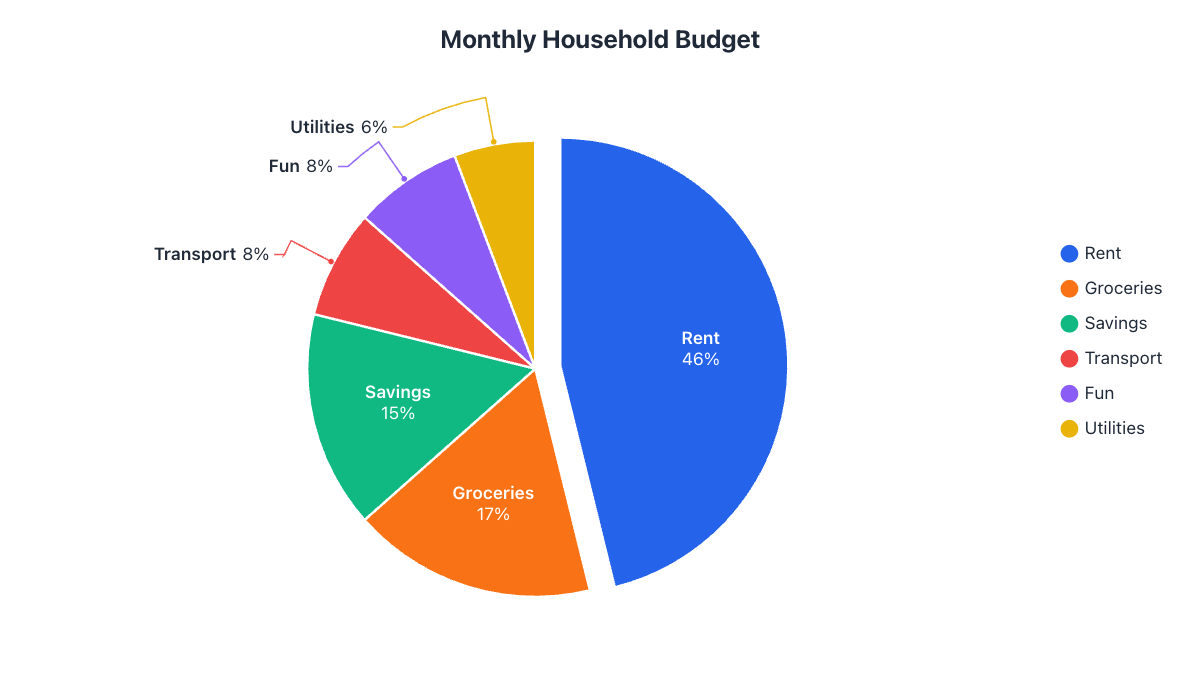
- Labels that stay readable: small slices get outside labels with leader lines that curve around the 3D pie.
- Interactive: hover a slice to lift it and see its value, then embed the interactive 3D chart on your website.
- Exact numbers: the table shows each slice’s percentage and angle, so your 3D chart is backed by correct figures.
When should you use a 3D pie chart?
3D pie charts are best when the goal is to grab attention: a title slide, a poster, a social media post or an infographic. Because tilting makes slices at the front look slightly larger, it is a good habit to:
- Show the percentages on the slices, so readers don’t have to judge sizes by eye.
- Keep the tilt moderate. A viewing angle of 35° to 50° looks 3D without distorting much.
- Put the slice you want to highlight at the front, or pull it out.
- Use a flat pie chart for detailed reports where readers compare similar-sized slices.
Tips for a great-looking 3D pie chart
- Use 3 to 6 slices with clearly different colors.
- A gradient fill adds a glossy look; patterns keep slices distinct when printed in black and white.
- Pull out just one slice. Exploding every slice makes the chart harder to read.
- Need a flat chart instead? Use the classic pie chart maker or the donut chart maker.