How to create a pie chart in 4 easy steps
- Add your data. Type a name for each slice (such as a category, product or answer) in the first column and its value in the next column. Already have the data in Excel or Google Sheets? Paste the cells straight into the table, or open the .xlsx / .csv file.
- Check the percentages. The % and angle columns update as you type, so you can see each slice’s share of the total and its size in degrees without doing any maths.
- Style it. Choose pie, donut or half pie, pick a theme or color palette, recolor single slices, pull out a slice to highlight it, and decide what the labels show.
- Download or share. Export a sharp PNG, JPG, SVG or PDF up to 4K, copy the image straight into Google Docs or PowerPoint, or send a share link so others can open and edit a copy.
What is a pie chart?
A pie chart (or circle graph) is a circle divided into slices, where each slice shows one category’s share of a whole. The bigger the value, the bigger the slice, and all the slices together always make 100%. Because people instantly understand fractions of a circle, pie charts are one of the quickest ways to show proportions: how a budget is split, which answer won a survey, or what share of the market each brand holds.
Cut a hole in the middle and you have a donut chart, which leaves room for a total. Show only the top half and you get a half pie chart. Put several data sets in rings around each other and you have a nested pie chart.
Why this is the easiest pie chart maker online
- Spreadsheet-style editor: edit data in a real table, move with Enter and the arrow keys, drag rows to reorder slices, and see the total, percentages and degrees live.
- Excel, Google Sheets & CSV: paste a block of cells, or open an .xlsx or .csv file. Files are read on your device, never uploaded.
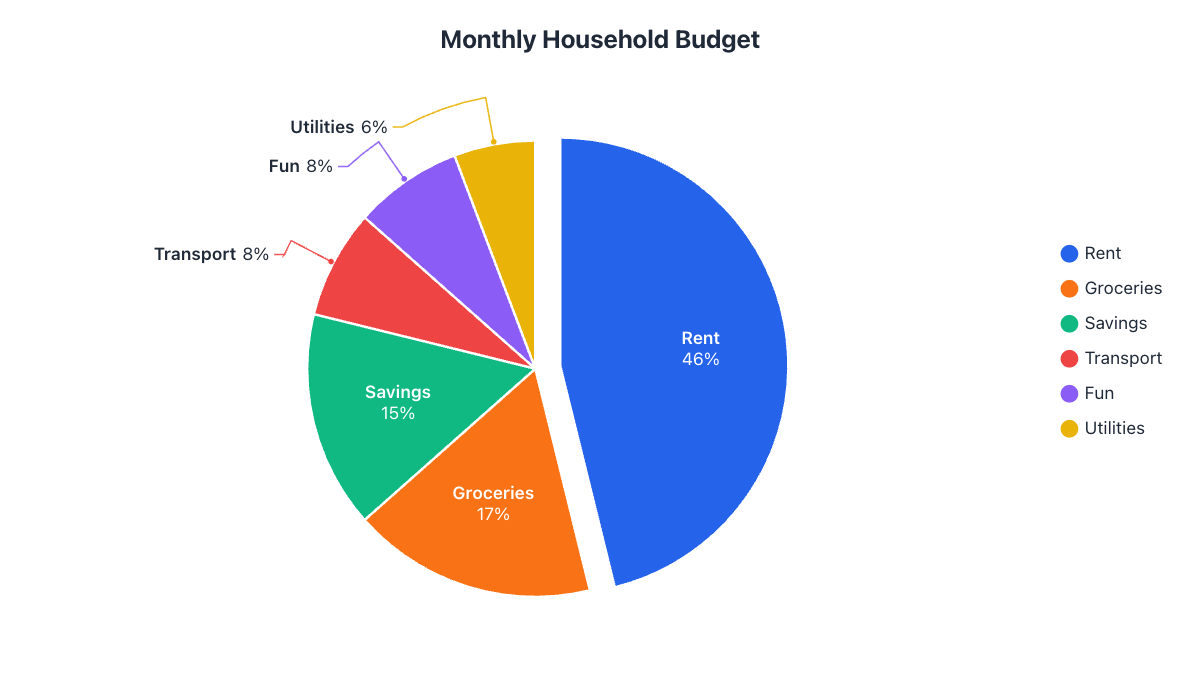
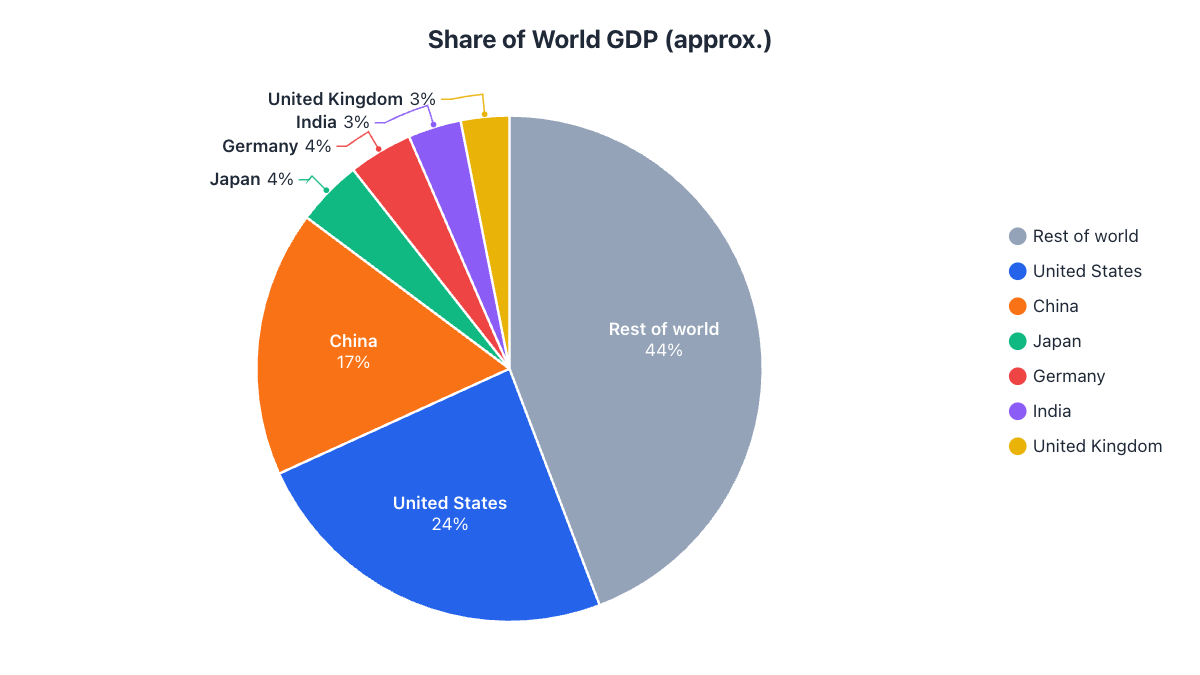
- Labels that never collide: labels sit inside big slices and move outside small ones with neat leader lines, automatically.
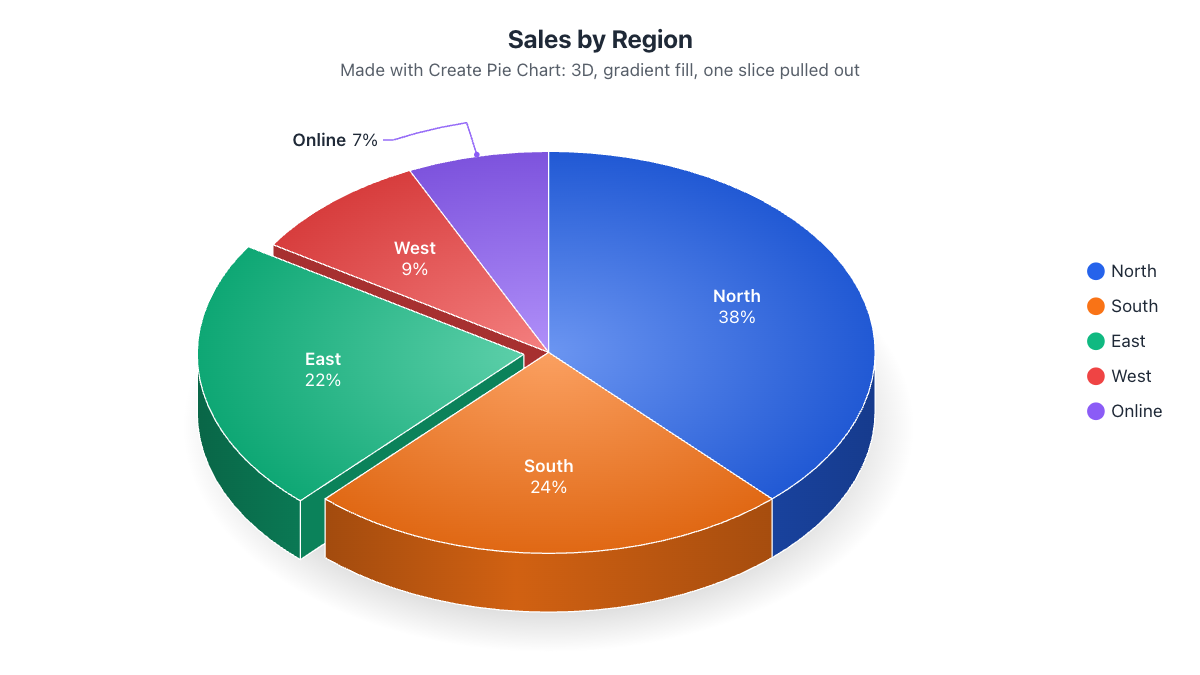
- Four chart types: pie, donut, half pie and half donut, plus up to four nested rings. Any of them can be shown in 3D with adjustable tilt and thickness.
- Pro styling: themes (including dark mode), 10 color palettes including a colorblind-safe one, gradients, print-friendly patterns, borders, gaps, rounded slices and exploded slices.
- Smart tidying: sort slices from largest to smallest and group tiny slices into “Other” in one click.
- High-resolution export: PNG, JPG and PDF at up to 3840px wide, plus true vector SVG with editable text for Illustrator, Figma and Inkscape. No watermark.
- Quick styles and undo: restyle the whole chart in one click (modern donut, glossy 3D, dark dashboard, print-friendly and more), and undo any change with Ctrl/⌘ + Z.
- Accessible: one click copies ready-made alt text describing every slice, so screen-reader users get the same information.
- Autosave, share & embed: your work is saved in your browser, a link lets anyone open an editable copy, and embed code puts an interactive chart on your website or blog.
How are pie chart percentages calculated?
Each slice’s size comes from two simple formulas:
- Percentage = value ÷ total × 100
- Angle = value ÷ total × 360°
For example, if you spend $1,400 of a $3,200 budget on rent, rent is 1,400 ÷ 3,200 = 0.4375, so it takes 43.75% of the pie and a slice of 157.5°. This tool does the calculation for every row as you type. For a full step-by-step explanation, see the pie chart calculator.
When should you use a pie chart?
Pie charts work best when:
- Your values are parts of one whole, such as a budget, a population or survey answers.
- You have a handful of categories, ideally between 2 and 7.
- You want to show that one slice is much bigger or smaller than the rest.
- All values are positive. A pie chart can’t show negative numbers.
Pie chart vs. bar chart
| Use a pie chart when… | Use a bar chart when… |
|---|---|
| The values add up to a meaningful whole | The values don’t add up to anything |
| You want to show shares and proportions | You want to compare exact sizes precisely |
| You have 2 to 7 categories | You have many categories |
| You show a single moment in time | You show changes over time (or use a line graph) |
Examples of pie charts
Click one of the examples under the data table to load it instantly, then replace the numbers with your own:
- Monthly budget: where your money goes
- Market share of competing brands
- Survey results, such as “How did you hear about us?”
- How you spend your day in hours, a classic school project
- Website traffic sources
- Favorite fruit in a class, for teaching fractions and percentages
- World population by continent
Tips for a clear, professional pie chart
- Keep it to about 7 slices. More than that gets hard to read. Use “Group small slices into Other” to combine the tiny ones.
- Order slices from largest to smallest, starting at 12 o’clock. Choose “Largest first” in the Labels tab.
- Label slices directly with names and percentages, so readers don’t have to look back and forth at a legend.
- Highlight one key slice by pulling it out or giving it a strong color, and keep the others muted.
- Use 3D for impact, flat for precision. A 3D pie chart grabs attention on slides and posters, but tilting makes front slices look bigger, so show percentages on the slices. For detailed reports, a flat pie is easier to read accurately.
- Printing in black and white? Switch the fill to Patterns so every slice stays distinct.