- Put the names in one column and the numbers in the next. Leave out any totals row.
- Insert › Insert Pie or Doughnut Chart › 2-D Pie creates the chart in one click.
- Add percentages with Chart Elements (+) › Data Labels › More Options › Percentage.
- Sort largest to smallest and keep to about seven slices for a clear chart.
- To skip the formatting, paste the two columns into an online pie chart maker.
A pie chart is the quickest way to show how a total splits into parts: where a budget goes, how survey answers divide, or each product’s share of sales. Excel can make one in a few clicks, but the default chart usually needs some tidying before it is ready for a report. This guide walks through every step, using a simple monthly budget as the example.
Step 1: Lay out your data in two columns
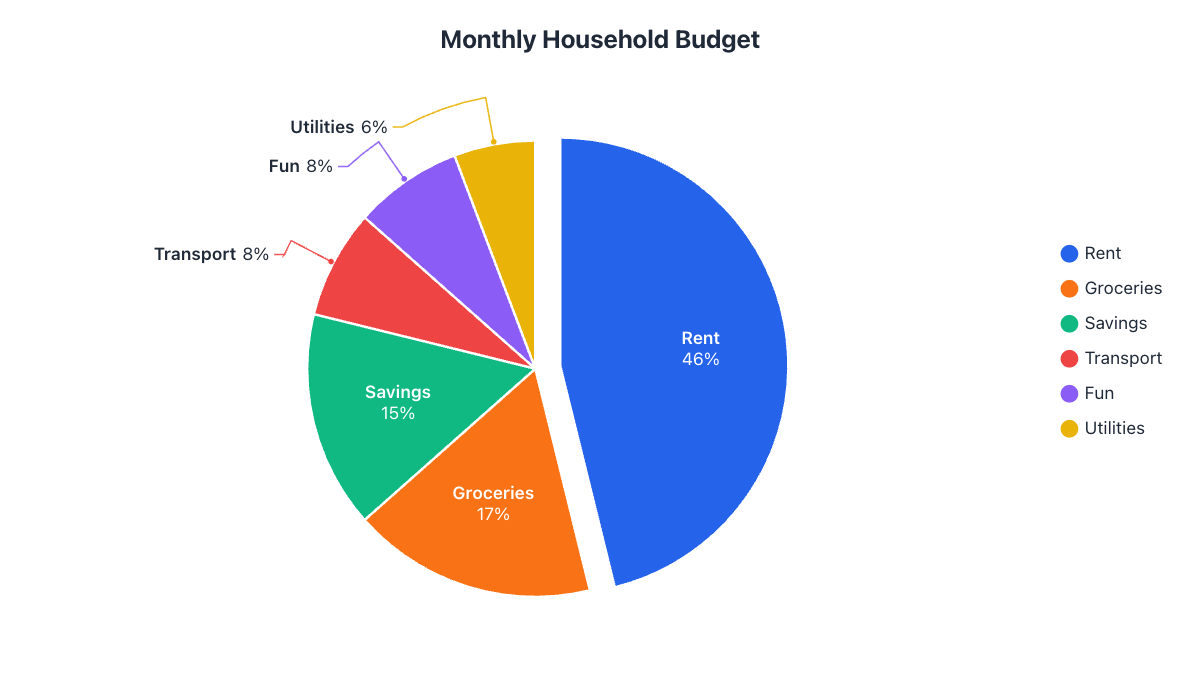
Put the category names in the first column and the numbers in the second. A header row is optional but makes the chart title easier. Our example budget looks like this:
| Category | Amount ($) |
|---|---|
| Rent | 1,200 |
| Groceries | 450 |
| Savings | 400 |
| Transport | 200 |
| Fun | 200 |
| Utilities | 150 |
A few rules save trouble later:
- One column of numbers only. A pie chart shows a single data series. If you select several number columns, Excel only uses the first one.
- No totals row. If you include a “Total” row, Excel draws it as a slice that takes up half the pie.
- Positive numbers only. A slice can’t be smaller than nothing, so leave out negative values and zeros.
- Raw numbers are fine. You don’t need to convert to percentages first; Excel works them out.
Step 2: Insert the pie chart
- Select the cells, including the names and the header (in our example, A1:B7).
- Open the Insert tab on the ribbon.
- In the Charts group, click the Insert Pie or Doughnut Chart button (the small pie icon).
- Choose Pie under 2-D Pie. You will also see 3-D Pie, Pie of Pie, Bar of Pie and Doughnut.
Menu path: InsertInsert Pie or Doughnut Chart2-D Pie
The chart appears on your sheet straight away. Click the title to rename it, for example “Monthly Household Budget”.
Step 3: Show percentages on the slices
Excel’s default pie shows no numbers, which forces readers to guess. To label each slice with its percentage:
- Click the chart, then click the + (Chart Elements) button that appears beside it.
- Tick Data Labels, then click the small arrow next to it and choose More Options.
- In the Format Data Labels pane, under Label Options, tick Percentage (and Category Name if you want names on the slices), and untick Value.
- Under Label Position, pick Best Fit or Outside End if labels overlap.
Menu path: Chart Elements (+)Data LabelsMore OptionsPercentage
On a Mac, the Chart Elements options are under Chart DesignAdd Chart ElementData Labels.
Step 4: Make it look professional
- Sort the data from largest to smallest before inserting the chart (Data → Sort Largest to Smallest). Slices then run clockwise from the biggest, which is how people expect to read a pie.
- Change slice colors: click the pie once to select all slices, click again to select one, then right-click → Format Data Point → Fill. Or pick a ready-made scheme from Chart Design → Change Colors.
- Pull out a slice: select a single slice and drag it away from the center, or set Point Explosion in Format Data Point. Use it for the one slice you want readers to notice.
- Remove clutter: if each slice is labelled with its name, delete the legend (click it and press Delete).
Step 5: Save the chart as an image
To use the chart in a document or slide, right-click its border and choose Copy, then paste it into Word or PowerPoint, where it stays sharp.
To save an image file in desktop Excel, right-click the chart border and choose Save as Picture, then pick PNG or JPEG under “Save as type” (some versions also list SVG). If the option is missing in your version, paste the chart into PowerPoint and use Save as Picture there. Excel for the web has no Save as Picture, so copy and paste the chart instead.
Common problems and how to fix them
| Problem | Fix |
|---|---|
| One giant slice called “Total” | Remove the totals row from the selection. |
| Only one slice, or slices named 1, 2, 3 | Excel read your data the wrong way round. Click Chart Design → Switch Row/Column. |
| Labels overlap on small slices | Set the label position to Outside End or Best Fit, or group small categories into “Other”. |
| Percentages add up to 99% or 101% | That’s rounding. Show one decimal place under Number in Format Data Labels. |
| Too many thin slices | Keep it to about 7 slices. Use Pie of Pie, combine small items, or choose another chart (see when not to use a pie chart). |
The faster way: make it online and paste your Excel data
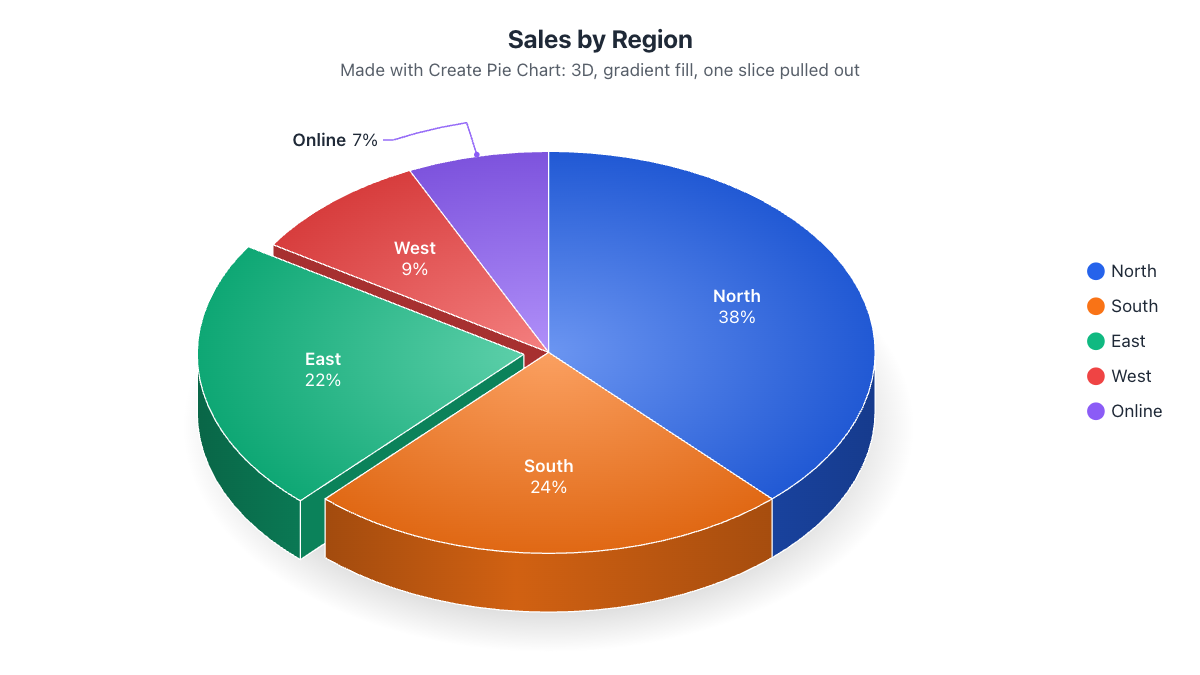
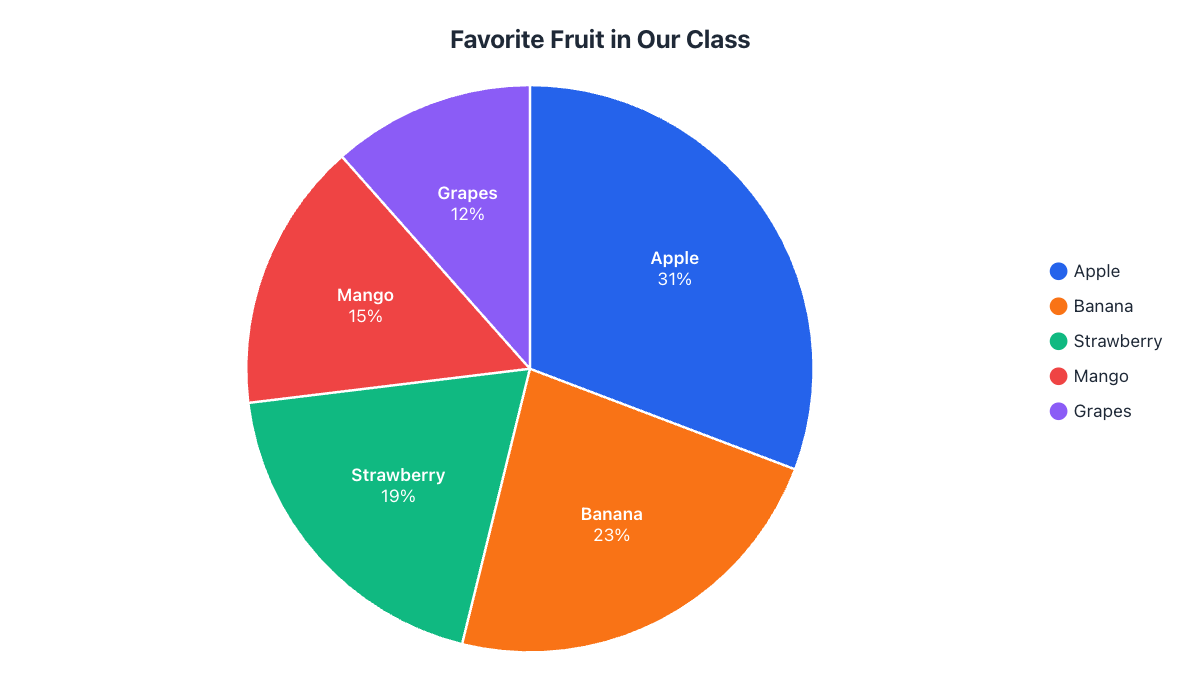
If you just need a good-looking chart image, you can skip the formatting. Copy the two columns from Excel, paste them into the pie chart maker, and the chart is drawn instantly with percentage labels that never overlap, a legend, and your choice of themes. You can also open the .xlsx file directly; it is read in your browser and never uploaded. Download it as PNG, JPG, PDF or a true vector SVG, at up to 4K resolution.
Frequently asked questions
Can Excel make a 3D pie chart?
Yes. Choose Insert › Insert Pie or Doughnut Chart › 3-D Pie. Tilting makes front slices look bigger, so add percentage labels to keep it accurate.
How do I make a donut chart in Excel?
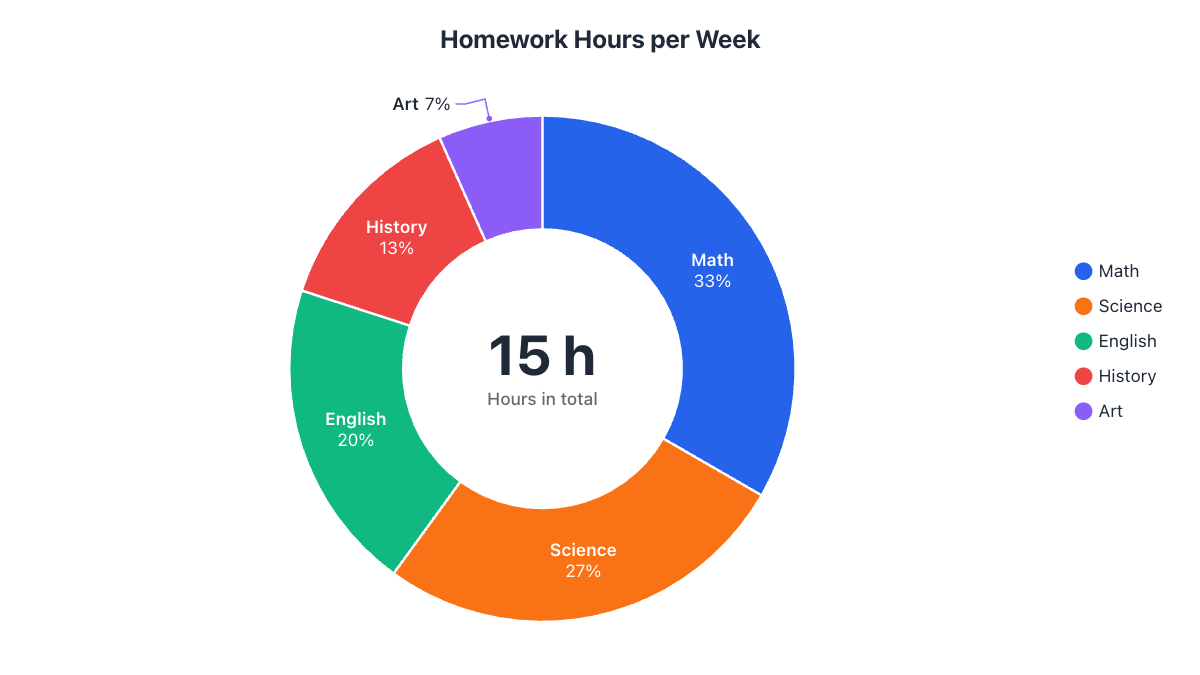
Pick Doughnut from the same Insert Pie or Doughnut Chart menu, then change the hole size in Format Data Series.
How do I show both the value and the percentage?
Open Format Data Labels and tick both Value and Percentage. Choose a separator such as a new line so the label stays readable.
Why does my Excel pie chart only use one column?
A pie chart shows a single data series. To compare two groups, make two pies or use a doughnut chart with one ring per series.
Why don't my percentages add up to 100%?
Each label is rounded on its own, so the total can show 99% or 101%. Show one decimal place in Format Data Labels › Number to reduce the effect.
Make your own chart in seconds
Free, no sign-up, no watermark. Download PNG, SVG or PDF.
Open the Pie Chart Maker