Making a pie chart sounds like a solved problem, yet the tools behave very differently once real data is involved: some hide labels on small slices, some ask you to sign up or watch an ad first, some lock the best export behind a paid plan. We compared seven popular options, from spreadsheets to design apps to free online makers, and ran the same test chart through the ones that can be used without an account.
Quick verdict
- Best free pie chart maker overall: Create Pie Chart. It’s the fastest route from data to a finished, well-labelled chart, with no account, no ads in the way and no watermark.
- Best when the chart must update with your data: Google Sheets (free) or Excel.
- Best for a complete infographic or social post: Canva.
- Best for a few typed-in numbers, nothing more: RapidTables.
How we tested
We used one realistic dataset for every tool: answers to the survey question “How did you hear about us?”. It has eight categories and a total of 392 responses, and three of the slices are under 2.5%, which is exactly where most pie charts fall apart.
| Answer | Responses | Share |
|---|---|---|
| Search engine | 142 | 36.2% |
| Friend or family | 96 | 24.5% |
| Social media | 88 | 22.4% |
| Advertisement | 35 | 8.9% |
| Podcast | 12 | 3.1% |
| Newsletter | 9 | 2.3% |
| Event | 6 | 1.5% |
| Other | 4 | 1.0% |
We judged each tool on six things that matter when you actually need a chart:
- Getting data in: can you paste from a spreadsheet or open a file, or must you retype it?
- Labels: does every slice end up with a readable label, including the tiny ones?
- Chart types: pie, donut, 3D, half pie, nested rings.
- Export: formats, resolution, transparent background, true vector SVG.
- Cost and friction: price, sign-up, ads, watermarks.
- Extras: sharing, embedding, accessibility, live data.
We tested Create Pie Chart, RapidTables and piechartmaker.co hands-on in October 2026. Google Sheets, Excel and Canva require an account, so for those we describe the workflow from their official documentation. We reviewed Meta-Chart’s public pages but did not complete its multi-step wizard, so its section is based on what it documents.
The test result in one picture
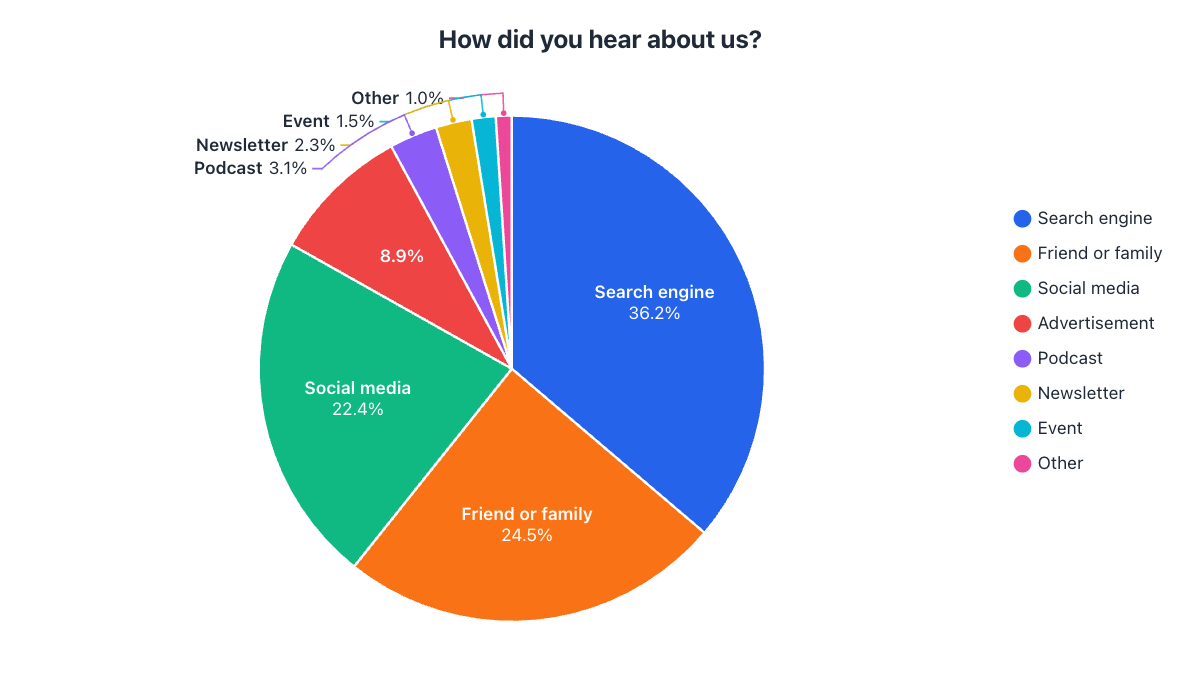
In RapidTables, the same data produced a chart where the two smallest slices (Event and Other) had no label at all, and longer names were shortened to “Newsl…” and “Advert…”. In piechartmaker.co, pressing Generate Graph opened a window asking us to watch a short ad to continue. More on both below.
1. Create Pie Chart: best free pie chart maker overall
- Price
- Free
- Sign-up
- Not needed
- Best for
- Fast, polished pie and donut chart images
Create Pie Chart is a free, browser-based tool that does one thing: pie-family charts, done properly. You type or paste data into a spreadsheet-style table, and the chart redraws as you type. The table shows each slice’s percentage and angle in degrees, which also makes it a pie chart calculator for homework.
In our test, pasting the eight rows from a spreadsheet produced the chart above in one step. Big slices were labelled inside; the four smallest were moved outside with leader lines that curve around the pie, so nothing overlapped or disappeared. The Advertisement slice was too narrow for its name, so it showed just the percentage, with the name in the legend.
Beyond the basics, it offers donut, half pie and half donut, nested charts with up to four rings and a full 3D mode you can tilt and spin. You can pull out slices, sort them, group small ones into “Other” and pick from eight one-click styles, ten palettes (including colorblind-safe), and gradient or print-friendly pattern fills. Downloads are PNG, JPG and PDF up to 4K and a true vector SVG with editable text, with no watermark. It also has undo, share links, interactive embeds and automatic alt text.
- Free, no account, no watermark, no ad gate
- Paste from Excel or Sheets, or open .xlsx / .csv files
- Labels never overlap; small slices get leader lines automatically
- Pie, donut, half, nested and real 3D in one tool
- Vector SVG and 4K exports
- Live percentages and degrees
- Pie-family charts only; no bar or line charts
- Charts don’t update automatically when your spreadsheet changes
- No team accounts or shared workspace
- Fewer layout templates than a full design app
Verdict: the best choice when you want a correct, good-looking pie or donut chart quickly and for free. If you need the chart linked to live data or embedded in a full design, pair it with one of the tools below.
2. Google Sheets: best for charts that stay in sync with data
- Price
- Free
- Sign-up
- Google account
- Best for
- Shared spreadsheets and live data
Google Sheets builds a pie chart from selected cells via Insert → Chart, and the chart updates whenever the numbers change. The chart editor offers pie, donut and 3D pie, slice labels (label, value, percentage or both), per-slice colors and a “distance from center” setting to pull a slice out. Charts can be downloaded as PNG, PDF or SVG, or published with an embed code. Our step-by-step Google Sheets guide covers the details.
- Free
- Chart stays linked to the data
- Real-time collaboration
- Many other chart types
- Requires a Google account
- Settings are spread across several editor panels
- Few controls for placing labels on small slices
- No half pie or nested rings
Verdict: excellent when the data already lives in a sheet that people keep editing. For a one-off, presentation-ready image it takes more clicks to get a polished result.
3. Microsoft Excel: most control, most setup
- Price
- Microsoft 365, or free web version
- Sign-up
- Licence or Microsoft account
- Best for
- Office users and reports
Excel offers 2-D and 3-D pie, Pie of Pie, Bar of Pie and Doughnut charts, and doughnuts can hold several data series as rings. Data labels can show values, percentages and names, with a “Best Fit” placement option, and slices can be exploded individually. Charts can be copied into Word or PowerPoint, and desktop Excel can save them as PNG or JPEG pictures (Excel for the web can’t). The default chart usually needs several formatting steps; our Excel pie chart guide walks through them.
- Deep formatting control
- Linked to your workbook
- Nested doughnut rings
- Fits Office workflows
- Needs a licence (or a Microsoft account for the web version)
- Default chart needs manual formatting
- Crowded labels often need dragging by hand
- Half pie only via a workaround
Verdict: the right choice if you already work in Excel and need the chart inside a workbook or Office document. Overkill if you just need a quick image.
4. Canva: best for complete designs
- Price
- Free plan, paid Pro
- Sign-up
- Canva account
- Best for
- Infographics, posters and social posts
Canva is a design platform rather than a chart tool. Its pie and donut charts sit inside a full editor with templates, fonts, photos and brand kits, and data can be typed in or imported. It’s the best option when the chart is one element of a larger design. Downloading as SVG is part of Canva’s paid plans.
- Huge template library
- Chart inside a full page design
- Brand kits and collaboration
- Account required
- Chart options are basic compared with dedicated tools
- SVG download and many assets need a paid plan
Verdict: choose Canva for the page around the chart. A good workflow is to make the chart in a dedicated tool, download a transparent PNG or SVG, and place it in your Canva design.
5. RapidTables: quick, but labels suffer
- Price
- Free
- Sign-up
- Not needed
- Best for
- A handful of typed-in numbers
RapidTables’ pie chart tool is a simple form: a title, a list of labels separated by spaces (with underscores standing in for spaces inside a name) and a list of values. Checkboxes switch on 3D or donut, and you can choose whether slices show values, percentages or labels and where the legend goes.
In our test the chart was drawn instantly, but the two smallest slices had no label at all and longer names were cut short. Typing “Friend_or_family” style labels by hand also gets tedious beyond a few items, and there is no way to paste a spreadsheet block or open a file.
- Free, no sign-up
- Very fast for tiny datasets
- 3D and donut options
- Data must be typed as space-separated lists
- Small slices lost their labels in our test
- Long names truncated
- Few styling options
Verdict: fine for a rough chart of three or four numbers; not for anything with small slices or long category names.
6. piechartmaker.co: simple, with an ad gate
- Price
- Free, ad-supported
- Sign-up
- Not needed
- Best for
- Basic pie or donut images
piechartmaker.co takes a title and comma-separated labels and values, and offers a “pie hole” setting for donuts, a 3D option, rotation, legend position, slice text (percentage, value or label) and a few color settings. It advertises PNG, JPEG and SVG downloads.
In our test, clicking Generate Graph opened a window saying the site is free and asking us to watch a short ad to continue, which grants access for 30 days. That’s a reasonable way to fund a free site, but it adds a step before you see your chart.
- Free, no account
- 3D and donut options
- SVG download advertised
- Ad gate before generating a chart (in our test)
- Data typed as comma lists; no file import
- No half pie or nested rings
Verdict: workable for a quick basic chart if you don’t mind the ad step.
7. Meta-Chart: guided, but you need an account to save
- Price
- Not stated on its pie chart page
- Sign-up
- Needed to save charts
- Best for
- Step-by-step guided charts
Meta-Chart walks you through a chart in steps. According to its pie chart page, it supports normal and 3D pies, plain or gradient backgrounds, data entered as lists or imported from a CSV file, a unit shown beside values, and labels that combine name, value and percentage. Guests can edit charts, but saving them for later requires a free account.
- CSV import
- 3D option
- Many text styling options
- Account needed to save
- Multi-step process
- Donut, half pie and nested rings not mentioned
Verdict: a reasonable middle ground if you like guided steps and have a CSV ready.
Side-by-side summary
| Feature | Create Pie Chart | Google Sheets | Excel | Canva | RapidTables | piechartmaker.co | Meta-Chart |
|---|---|---|---|---|---|---|---|
| Free to use | ✓ | ✓ | Paid, or free web version | Free plan | ✓ | Free, with an ad gate | – |
| No account needed | ✓ | ✗ | ✗ | ✗ | ✓ | ✓ | Account needed to save |
| Paste a block from a spreadsheet | ✓ | Native | Native | ✓ | Typed lists | Typed lists | Typed lists |
| Open Excel / CSV files | Both | ✓ | ✓ | – | ✗ | ✗ | CSV |
| 3D pie | ✓ | ✓ | ✓ | – | ✓ | ✓ | ✓ |
| Donut | ✓ | ✓ | ✓ | ✓ | ✓ | ✓ | – |
| Half pie / half donut | ✓ | ✗ | Workaround | – | ✗ | ✗ | – |
| Nested rings | ✓ | ✗ | ✓ | – | ✗ | ✗ | – |
| All 8 slices labelled in our test | ✓ | – | – | – | ✗ | – | – |
| Vector SVG download | ✓ | ✓ | Some desktop versions | Paid plans | – | ✓ | – |
| Live link to spreadsheet data | ✗ | ✓ | ✓ | Google Sheets import | ✗ | ✗ | ✗ |
| Other chart types | ✗ | ✓ | ✓ | ✓ | ✓ | – | ✓ |
✓ = yes, ✗ = no, – = not tested and not stated on the tool’s public pages. Based on our tests and each tool’s public pages in October 2026; features and plans change, so check before relying on a detail.
Which pie chart maker should you use?
| If you need… | Use |
|---|---|
| A clean pie or donut chart image, fast, free and without signing up | Create Pie Chart |
| A 3D pie chart you can tilt and spin | 3D Pie Chart Maker |
| Percentages and degrees for homework | Pie Chart Calculator |
| A chart that updates when the spreadsheet changes | Google Sheets or Excel |
| A complete infographic, poster or social post | Canva, with a chart exported from a dedicated tool if you like |
| Trends over time | A line graph, e.g. Line Graph Maker |
Frequently asked questions
What is the best free pie chart maker?
For most people who need a finished chart image, Create Pie Chart: it's free with no account, handles spreadsheet data and small slices well, and exports vector SVG and 4K images without a watermark. If the chart must stay linked to changing data, Google Sheets is the best free option.
Can I make a pie chart without signing up?
Yes. Create Pie Chart, RapidTables and piechartmaker.co can be used without an account (piechartmaker.co asked us to watch an ad first). Google Sheets, Excel and Canva need an account.
Which tool is best for a pie chart with many small slices?
One that places labels outside small slices automatically. In our test, Create Pie Chart labelled all eight slices, while RapidTables left the two smallest unlabelled. Grouping slices under about 3% into 'Other' also helps.
Which pie chart makers can export SVG?
Create Pie Chart (true vector with editable text), Google Sheets and piechartmaker.co offer SVG downloads. Some desktop versions of Excel can save charts as SVG, and Canva includes SVG in its paid plans.
Is a pie chart maker better than Excel?
For a quick, polished image, usually yes: you paste the data and download the result without formatting steps. Excel is better when the chart must stay linked to a workbook or live inside an Office document.
Make your own chart in seconds
Free, no sign-up, no watermark. Download PNG, SVG or PDF.
Open the Pie Chart Maker