How to use the pie chart calculator
- Type a name and a value for each category in the table above, or paste them from a spreadsheet.
- Read the % column for each slice’s percentage and the Angle° column for its size in degrees. The total row shows the sum of your values.
- The pie chart updates live. Download it as PNG, JPG, SVG or PDF when it’s ready.
Pie chart formulas
Every pie chart is built from two formulas. First add up all your values to get the total, then for each slice:
- Percentage of slice = (value ÷ total) × 100
- Angle of slice = (value ÷ total) × 360°
- Percentage to degrees: degrees = percentage × 3.6
- Degrees to percentage: percentage = degrees ÷ 3.6
Worked example
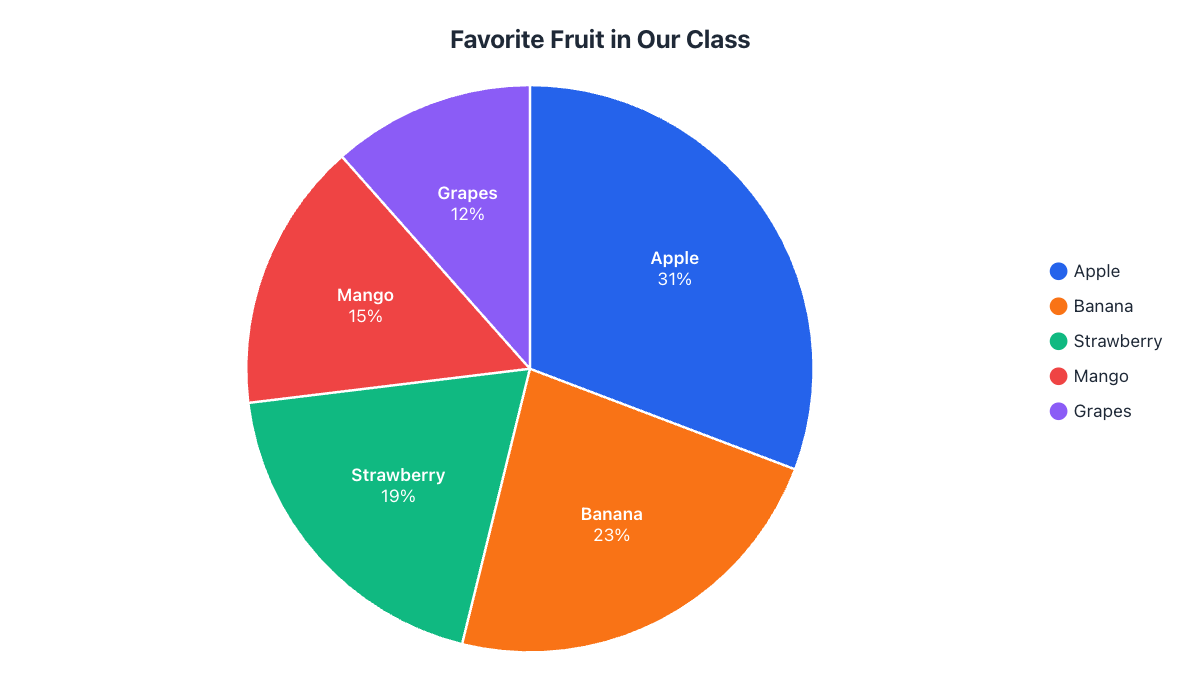
A class of 26 students was asked for their favorite fruit. The total is 8 + 6 + 5 + 4 + 3 = 26, so:
| Fruit | Students | Percentage | Angle |
|---|---|---|---|
| Apple | 8 | 8 ÷ 26 × 100 = 30.8% | 8 ÷ 26 × 360 = 110.8° |
| Banana | 6 | 6 ÷ 26 × 100 = 23.1% | 6 ÷ 26 × 360 = 83.1° |
| Strawberry | 5 | 5 ÷ 26 × 100 = 19.2% | 5 ÷ 26 × 360 = 69.2° |
| Mango | 4 | 4 ÷ 26 × 100 = 15.4% | 4 ÷ 26 × 360 = 55.4° |
| Grapes | 3 | 3 ÷ 26 × 100 = 11.5% | 3 ÷ 26 × 360 = 41.5° |
| Total | 26 | 100% | 360° |
This is the example loaded in the calculator above. Change any number and the percentages and angles update instantly.
How to draw a pie chart by hand
- Calculate the angle of every slice with the formula above (or read it from the Angle° column).
- Draw a circle with a compass and mark the center.
- Draw a straight line from the center to the top of the circle (12 o’clock).
- Place a protractor on that line and measure the first angle clockwise. Draw the next line.
- Measure each following angle from the last line until you get back to the start.
- Color each slice and label it with its name and percentage.
Tip: round angles to the nearest degree for drawing, and check that they add up to 360°. If they add up to 359° or 361°, adjust the largest slice by one degree.
Common mistakes to avoid
- Mixing totals: every slice must be part of the same whole. Don’t combine answers from different questions in one pie.
- Overlapping categories: if someone can be in two categories at once, the slices don’t add up to a whole and a pie chart isn’t the right choice.
- Negative values: a slice can’t be smaller than zero. Negative numbers are left out of the chart and highlighted in red in the table.
- Too many slices: group small categories into “Other” to keep the chart readable.