- Percentage of a slice = value ÷ total × 100.
- Angle of a slice = value ÷ total × 360, which is the same as percentage × 3.6.
- Check your work: percentages add up to 100% and angles to 360°.
- Rounding can make the total 99% or 101%; adjust the largest slice, never a small one.
Every pie chart, whether it’s drawn by hand, in Excel or online, rests on two small formulas. Once you know them you can check any chart, draw one with a protractor, or turn raw survey counts into clean percentages. This guide explains both formulas, works through a complete example and covers the rounding problem that trips up almost everyone.
The two pie chart formulas
First add up all your values to get the total. Then, for each slice:
- Percentage = value ÷ total × 100
- Angle in degrees = value ÷ total × 360
Both start with the same fraction, value ÷ total, which is the slice’s share of the whole. Multiplying by 100 turns that share into a percentage; multiplying by 360 turns it into degrees, because a full circle is 360°.
Worked example: favorite fruit in a class
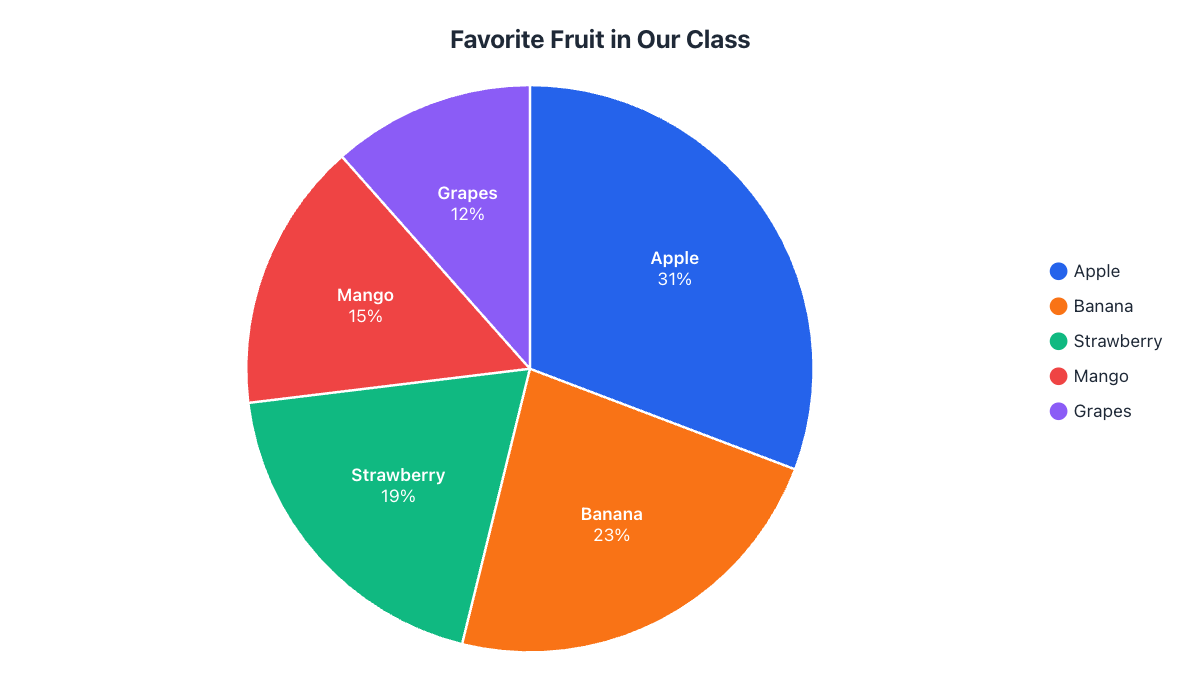
A class of 26 students voted for their favorite fruit. The total is 8 + 6 + 5 + 4 + 3 = 26. Applying the formulas to every row:
| Fruit | Votes | Share | Percentage | Angle |
|---|---|---|---|---|
| Apple | 8 | 8 ÷ 26 = 0.3077 | 30.8% | 110.8° |
| Banana | 6 | 6 ÷ 26 = 0.2308 | 23.1% | 83.1° |
| Strawberry | 5 | 5 ÷ 26 = 0.1923 | 19.2% | 69.2° |
| Mango | 4 | 4 ÷ 26 = 0.1538 | 15.4% | 55.4° |
| Grapes | 3 | 3 ÷ 26 = 0.1154 | 11.5% | 41.5° |
| Total | 26 | 1 | 100% | 360° |
Check your work: the percentages must add up to 100% and the angles to 360°. If they don’t, a value was copied wrong or a slice is missing.
Converting between percentages and degrees
Because 100% equals 360°, every 1% is 3.6°. That gives two handy shortcuts:
- Percentage → degrees: multiply by 3.6. For example 25% × 3.6 = 90°, a quarter of the circle.
- Degrees → percentage: divide by 3.6. For example 72° ÷ 3.6 = 20%.
Some benchmarks are worth remembering:
| Percentage | Degrees | Fraction of the circle |
|---|---|---|
| 50% | 180° | One half |
| 25% | 90° | One quarter |
| 12.5% | 45° | One eighth |
| 10% | 36° | One tenth |
| 33.3% | ≈ 120° | About one third |
| 5% | 18° | One twentieth |
Finding a value from a percentage
Sometimes you know the percentage and the total, and need the original number, for example “40% of a $2,500 budget goes on rent”. Reverse the formula: value = percentage ÷ 100 × total, so 40 ÷ 100 × 2,500 = $1,000. From an angle it’s value = degrees ÷ 360 × total.
Why rounded percentages don’t always add up to 100%
In our example the unrounded percentages add up to exactly 100, but once each one is rounded to a whole number they can come to 99% or 101%. With three equal slices, each is 33.33…%, which rounds to 33%, and 33 + 33 + 33 = 99%. That’s not a mistake, just rounding. You can:
- Show one decimal place (33.3%), which usually brings the total much closer to 100%.
- Add a short note such as “Figures may not add up to 100% due to rounding.”
- When drawing by hand, adjust the largest slice by a degree so the angles total exactly 360°; the change is invisible on a large slice.
Drawing the pie chart by hand
- Calculate each angle with the formula above, rounded to the nearest degree.
- Draw a circle with a compass and mark the center.
- Draw a line from the center straight up to the edge (12 o’clock).
- Put the protractor on that line and measure the first angle clockwise, then draw the next line.
- Keep measuring each angle from the last line until you return to the start.
- Color the slices and label each with its name and percentage.
Let the calculator do it
The pie chart calculator applies both formulas as you type: every row shows its percentage and angle, the total row confirms 100% and 360°, and the finished pie chart is drawn next to the table, ready to download. It also accepts values like “$1,250” or “12.5%” and ignores the symbols.
Spreadsheets apply the same formulas when they label a pie chart with percentages; see how in Excel and Google Sheets. And before you draw, check that your data suits a pie at all: when not to use a pie chart.
Quick reference
- Total = sum of all values
- Percentage = value ÷ total × 100
- Degrees = value ÷ total × 360 = percentage × 3.6
- Value = percentage ÷ 100 × total = degrees ÷ 360 × total
- Check: percentages add up to 100%, angles to 360°
Frequently asked questions
How many degrees is 25% of a pie chart?
90°. Multiply the percentage by 3.6: 25 × 3.6 = 90.
How do I convert degrees to a percentage?
Divide by 3.6. For example, 72° ÷ 3.6 = 20%.
How do I find the value of a slice from its percentage?
Multiply the percentage by the total and divide by 100. For example, 40% of a $2,500 budget is 40 × 2,500 ÷ 100 = $1,000.
Can a pie chart show negative numbers?
No. A slice can't be smaller than nothing, so negative values (and zeros) can't be shown. Use a bar chart for data with negative values.
What if my percentages don't add up to exactly 100%?
That's usually rounding. Show one decimal place, or add a note that figures may not total 100% due to rounding.
Make your own chart in seconds
Free, no sign-up, no watermark. Download PNG, SVG or PDF.
Open the Pie Chart Calculator